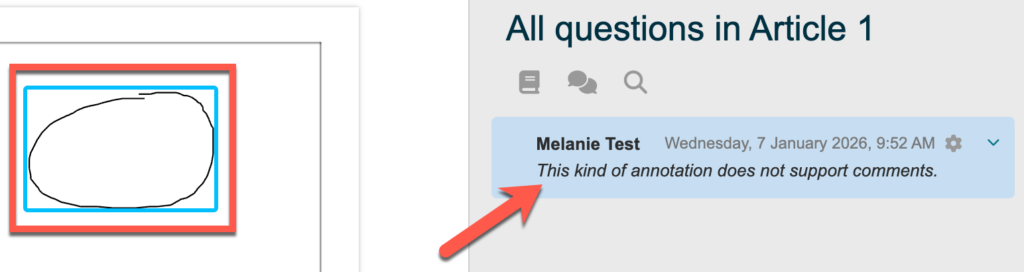
The PDF Annotation tool in Moodle allows you to add text-based comments, drawings, personal notes, or private notes to a PDF document uploaded by your instructor.
The following video showcases how to use the tool:
Frequently Asked Questions
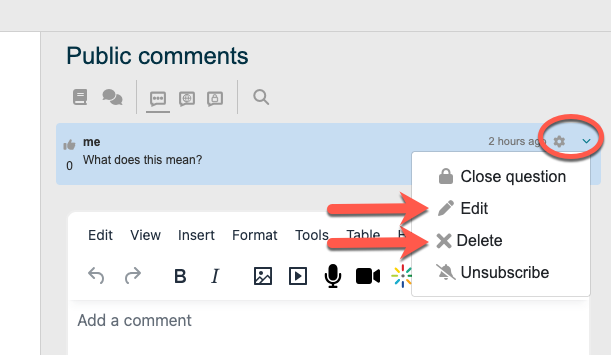
On your annotation post, click the arrow/wheel icon and select Edit or Delete.
That depends on how your instructor set up the tool. It might be used class wide or with a smaller group so ask your instructor for further clarification.
You may be able to post anonymously but this is something to speak to your instructor about.
It depends on what settings your instructor allowed, what kind of contribution you want to make, and how you want others to interact with it!
Option A
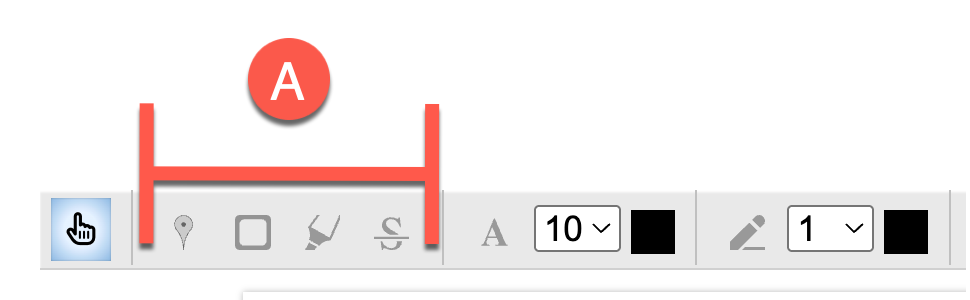
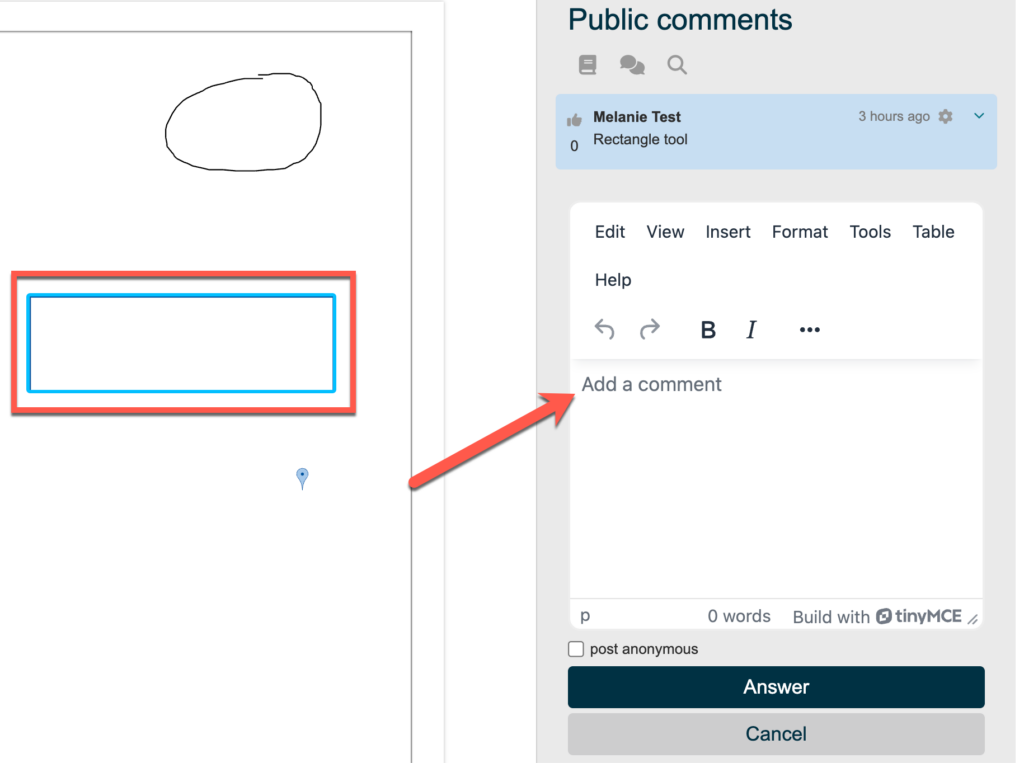
The pin, rectangle, highlighter, and strikethrough functions allow you to mark a spot in the document and create an accompanying post that other students can comment on:
Option B
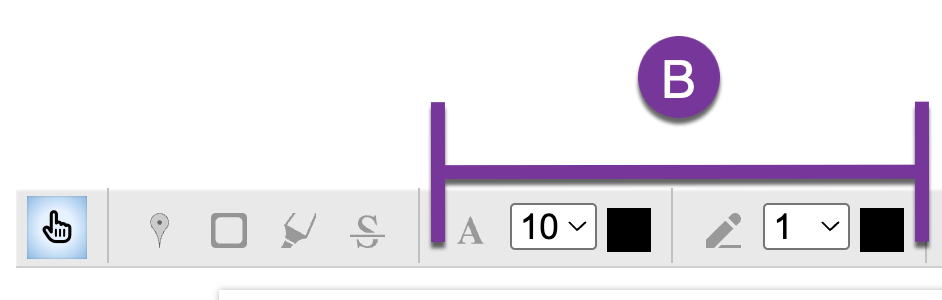
The text box and drawing functions allow you to contribute to the document, but no one will be able to add comments to your contribution: